
Terminal UI guide
Start the terminal UI with kticket, or select an administrator kubeconfig:
kticket --kubeconfig /path/to/admin.configUse a terminal of at least 50 columns by 18 rows. Wide terminals show workflow steps, the active form, and a request preview side by side. Smaller terminals use a single panel. The theme follows the terminal’s light or dark background.
Language and navigation
kticket --lang en
kticket --lang zh-CN
kticket --lang zh-TW
kticket --lang ja
kticket --lang fr
kticket --lang de
KTICKET_LANG=zh-CN kticket
Language selection follows this order: --lang, KTICKET_LANG, LC_ALL, LC_MESSAGES, then LANG. Common locales such as zh_CN.UTF-8 are recognized. Unsupported system locales select English; invalid explicit language settings or KTICKET_LANG values return an error.
If no language setting is present, the host’s current UTC offset selects Chinese for UTC+8 and English otherwise. Use --lang or KTICKET_LANG to choose explicitly.
Press F2 on any page to cycle through English, Simplified Chinese, Traditional Chinese, Japanese, French, and German without losing input, cursor position, staged grants, or a running operation. The change lasts for the current session. CLI flags, help, and output remain in English. Resource names, paths, API operations, and underlying error details retain their original values.
| Key | Action |
|---|---|
| ↑/↓ | Move through choices or rows |
| Enter | Confirm input or the current step |
| Esc / Ctrl+B | Go back while editing |
| Ctrl+U | Clear the current input |
| Tab | Complete the current or first suggestion in a single-value selector |
| Space / Tab | Toggle a namespace in the multi-select picker |
| PgUp / PgDn | Scroll long previews, explanations, and diagnostics |
| F1 | Show all shortcuts for the current page; Esc closes help |
| F2 | Switch interface language |
On the home page, choose an action with the arrow keys or press 1, 2, or 3. Page-specific actions appear in the footer.
Object selectors fetch suggestions when focused. Typing filters the list; an exact match is highlighted. Arrow keys select a candidate and fill the input. With no exact match, Down selects the first candidate and Up selects the last. Tab completes without advancing; Enter confirms. Suggestion failures do not prevent manual input, but required objects must pass validation before proceeding.
The header shows the selected cluster, the administrator kubeconfig’s local user alias, and its authentication methods. The alias comes from the configuration and is not a verified Kubernetes identity.
Issue credentials
The issuance workflow has six stages. The top navigation shows the active stage; form headings such as 2.1 identify a field within that stage.
- Environment. Select a context and the ServiceAccount namespace, defaulting to
kticket-users. - Accounts. Enter one name or paste names separated by commas, spaces, or line breaks. Review the deduplicated account list and which accounts will be created or reused.
- Configure grants. Add grants for all accounts in this batch. The list starts empty. Enter on an empty list opens a confirmation dialog; Enter again continues without adding permissions, and Esc closes the dialog. Adding grants continues with a single Enter.
- Credential settings. Set the duration, API endpoint, TLS verification, and an existing output directory. Duration defaults to
24h, with a minimum of10mand whole-second precision. The output directory defaults to the running user’s home directory, displayed as an absolute path. An explicitly entered directory takes precedence. - Confirm issuance. Review new grants, retained access, connection settings, and each
<accountName>.<clusterName>.kubeconfigfilename. Enter starts issuance; Esc returns to editing. - Execution result. Inspect the outcome for each account and any operations that need attention.
Choose accounts
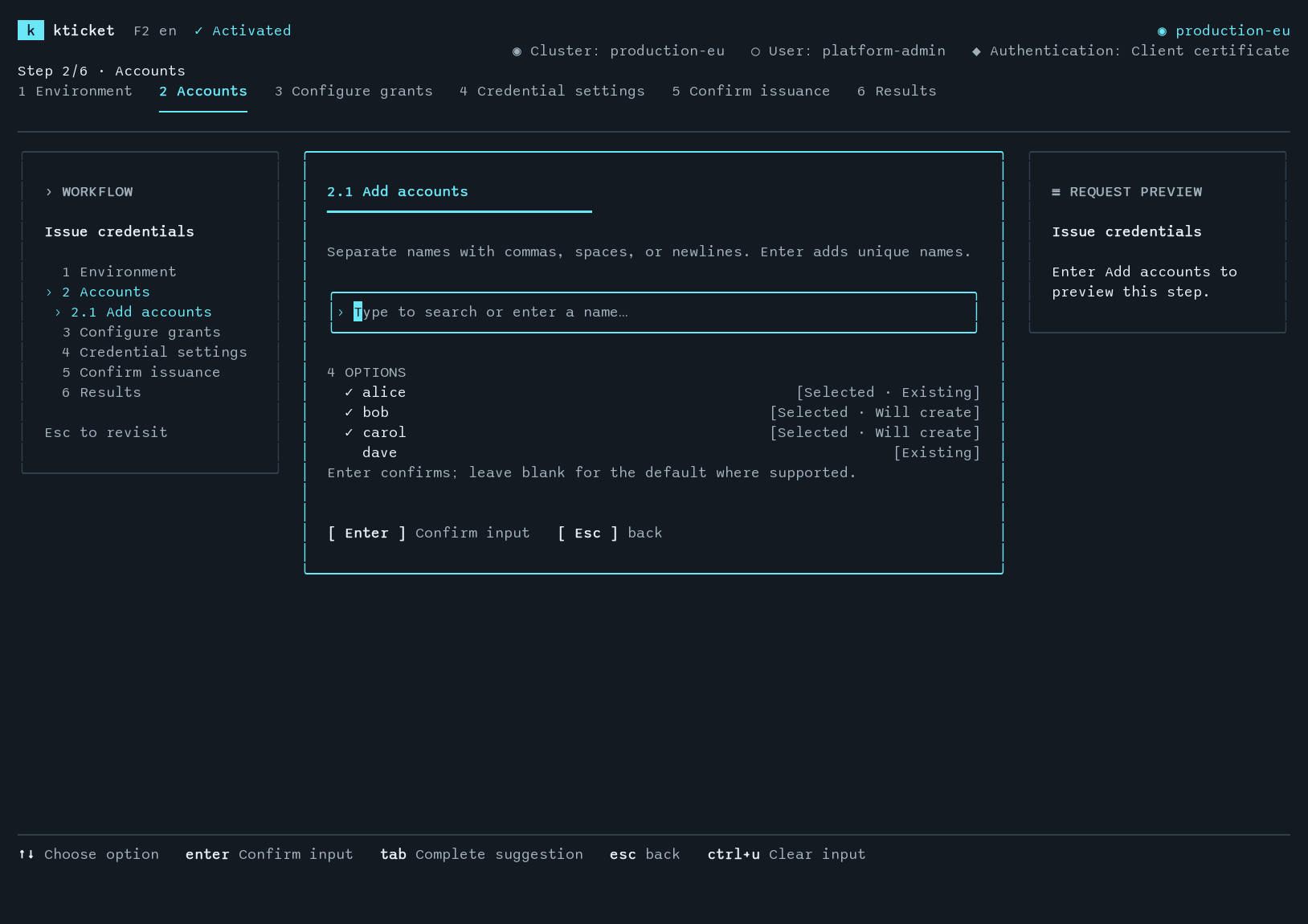
alice, bob, and carol are selected. alice already exists; bob and carol will be created. dave exists but is not selected. The checkmark indicates batch membership, independently of the current input or highlighted candidate.
The picker includes both selected names and existing managed accounts. Selecting a candidate fills the input; Enter adds it to the batch without duplicating an account already selected.
In the account list, a adds names and d removes a name from the batch. Removing a name does not delete its ServiceAccount. Use ↑/↓ to inspect each account’s existing direct and group assignments.
In the shared grant list, a adds a grant, e edits an addition, and d cancels it. All accounts receive the same additions, but retain their own existing permissions, so their final access may differ. For example, issue for alice, bob, carol with ClusterRole/edit in app-dev and app-test, plus ClusterRole/view in app-prod.
Only the account namespace and ServiceAccount can be created during issuance. Referenced roles and target namespaces must already exist, except that an existing ClusterRole can be bound within the account namespace being created. A Role always requires an existing namespace. Changing the account namespace clears the target selection so it can be reviewed again.
The full batch is checked before issuance for invalid names, missing targets, existing files or symlinks, and duplicate output paths. Draft editing and batch checks do not write grants or issue tokens. Final checks run again during issuance to detect intervening changes. The review calls out cluster-wide cluster-admin access and disabled TLS verification when selected.
Select multiple target namespaces
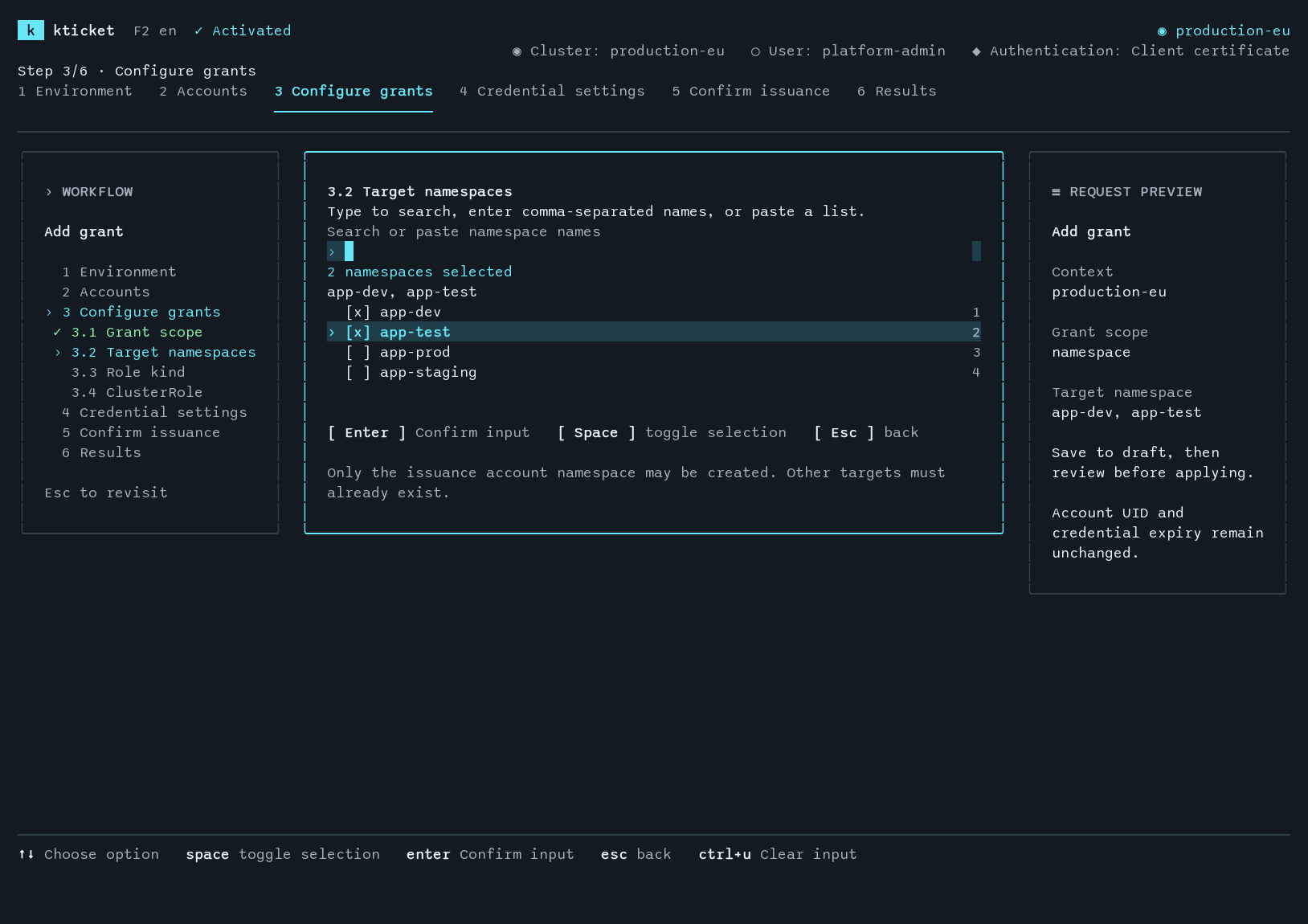
app-dev and app-test are checked. After confirming the targets, choose the role kind and role name; the role is applied to each target.
When adding a grant, use ↑/↓ to move through namespaces and Space or Tab to select them. You can also enter comma-separated names or paste a list on multiple lines. Enter validates the selection; Ctrl+U clears it.
Choose one role for all selected targets. The selection becomes a separate grant for each namespace, with duplicates removed. Each grant can then be edited individually. To use a different role elsewhere, add another selection.
For a namespaced Role, the same role name must exist in every selected namespace. Suggestions include only names common to all targets. A namespace-scoped ClusterRole selection creates RoleBindings in the selected namespaces; it does not grant cluster-wide access.
Review the batch
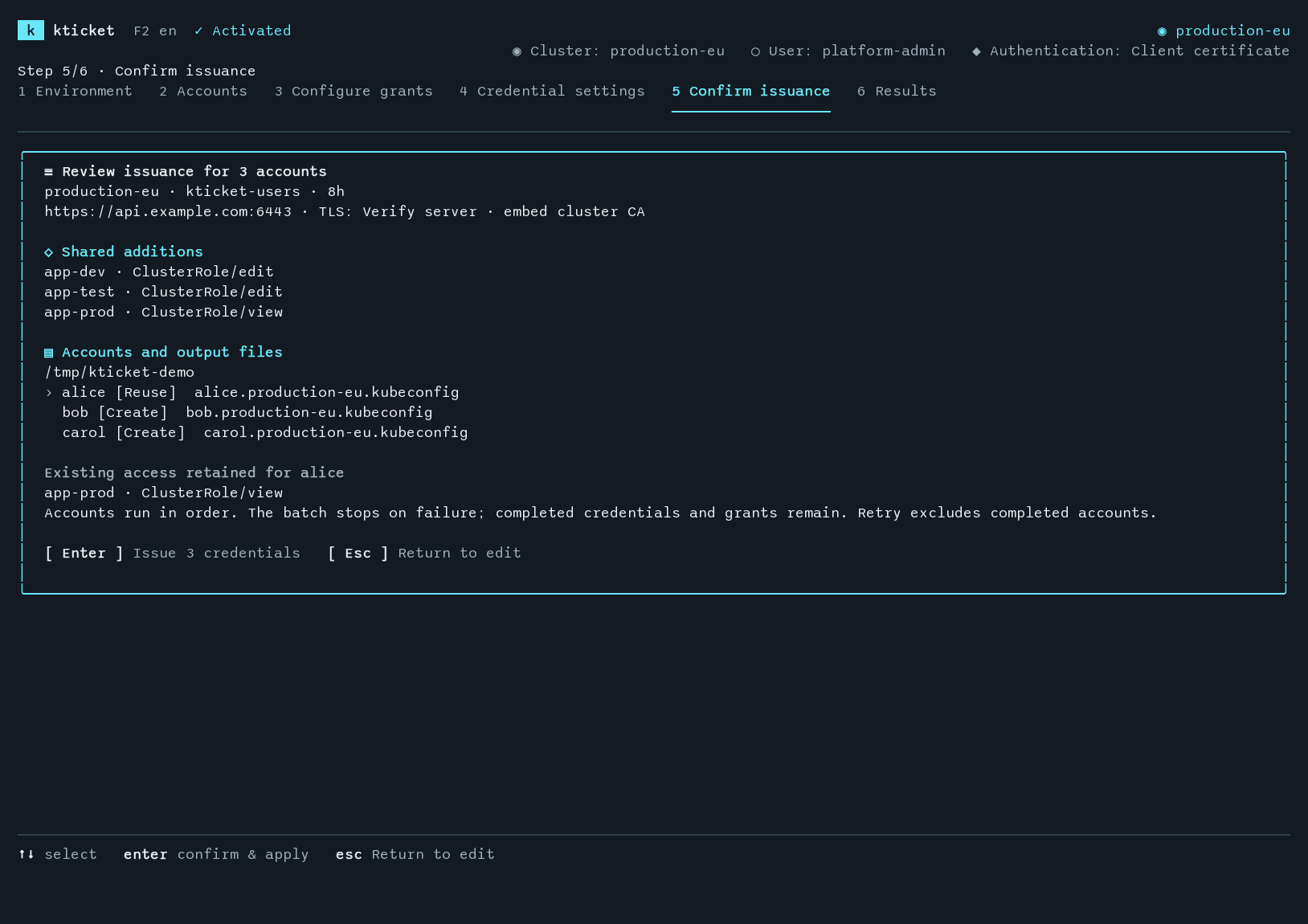
The review lists three accounts, an eight-hour requested duration, shared grants, and one output file per account. alice retains its existing app-prod grant; selecting it again does not create a duplicate binding.
Results and retry
Accounts are processed sequentially. The result page updates after each account and stops on the first failure. Use ↑/↓ to inspect operations, actual expiry, and the revoke command for each account. Paths to the generated kubeconfig files are highlighted. On a local desktop session, o reveals the selected successful file in the system file manager; if the current row failed, it reveals the first successful file in batch order. The action is hidden over SSH and on systems without a desktop. Token values are never displayed.
Completed credentials and grants remain after a failure. In the same session, r checks and reviews failed or pending accounts before retrying; successful accounts are excluded. If a token was issued but a later step failed, the account is marked Needs attention and excluded from automatic retry. Inspect its operation report before issuing again.
Retry state is kept only in the current session. The batch cannot be resumed after exiting kticket. See failure handling for cluster resources that may remain after a failed operation.
Inspect accounts and credentials
Choose Accounts & grants. The table shows managed accounts and their bindings. On a wide terminal, creation time is followed by the next credential expiry. The account UID remains in the selected-row details.
| Key | Action in the account list |
|---|---|
| Enter / a | Open the account’s access editor |
| v | View recorded credentials |
| i | Start issuance |
| r | Review account revocation |
| Ctrl+R | Refresh |
| q | Quit |
In credential history, ↑/↓ selects a record, PgUp/PgDn scrolls details, and Esc returns. Opening history preserves staged permission changes. Records show the credential alias, issuance time, expiry, full ID, and audit ID when available. Account creation time is distinct from credential issuance time.
Edit account permissions
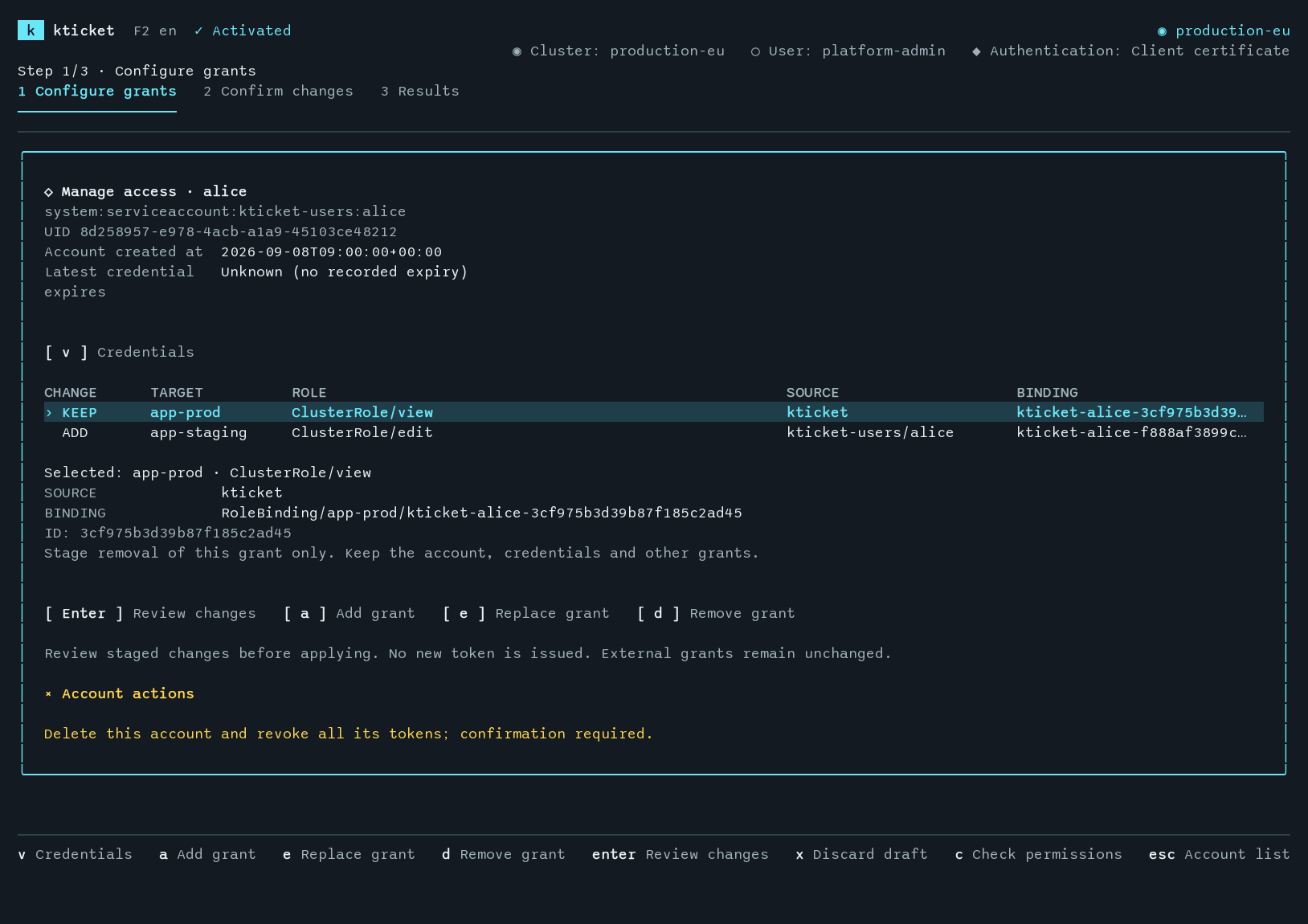
alice keeps ClusterRole/view in app-prod, with ClusterRole/edit staged for app-staging. The selected row’s details show the full binding reference. Enter reviews the draft before it is applied.
Select an account and press Enter to open its access editor.
| Key | Action in the access editor |
|---|---|
| a | Stage a new grant |
| e | Stage replacement of the selected grant |
| d | Stage removal, undo a staged removal, or cancel a staged addition |
| Enter | Review the combined plan, then confirm it on the review page |
| x | Discard the draft |
| c | Check authorization for an operation |
| v | View credential history |
| r | Review account revocation when no draft changes remain |
| Ctrl+R | Refresh when no draft changes remain |
Edits stay in a local draft until confirmed. Esc returns from review to editing. Apply or discard the draft before returning to the account list, refreshing, or revoking the account. External assignments are displayed in gray and are read-only; select them to inspect their subjects and binding references. Select a managed grant or staged addition to review a draft.
Namespace multi-selection is also available when adding or replacing a grant here. Replacing one row removes that original grant and adds the selected role in each chosen namespace.
Removing a grant with d preserves the account and its credentials. Revoking the account with r deletes the ServiceAccount and invalidates all tokens for its UID. Revocation always has a confirmation page in the TUI.
Permission checks accept a namespace, API group, resource or subresource, verb, and optional resource name. Results describe the selected operation; they do not enumerate the account’s entire effective permissions. See the CLI reference for the same operation in scripts.